
You can find the documentation for sending OSC from Vicon Tracker in the manual on pages 48 – 51. Here is a quick overview of turning on OSC streaming:
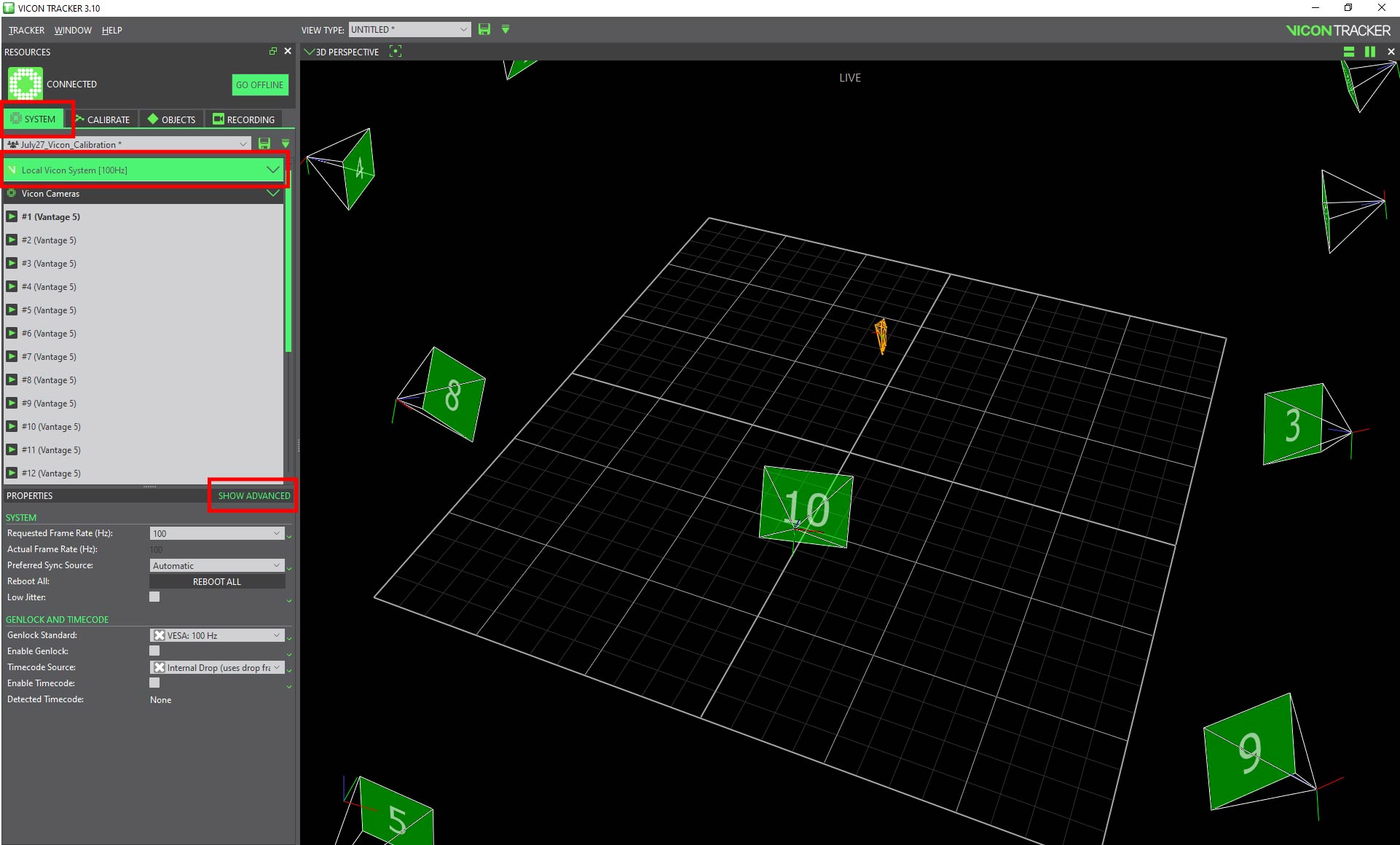
- Select the System tab at the top left of the Resources Window. Make sure you have Local Vicon System Selected. Then open the advanced settings by selecting Show Advanced at the bottom right of the window.
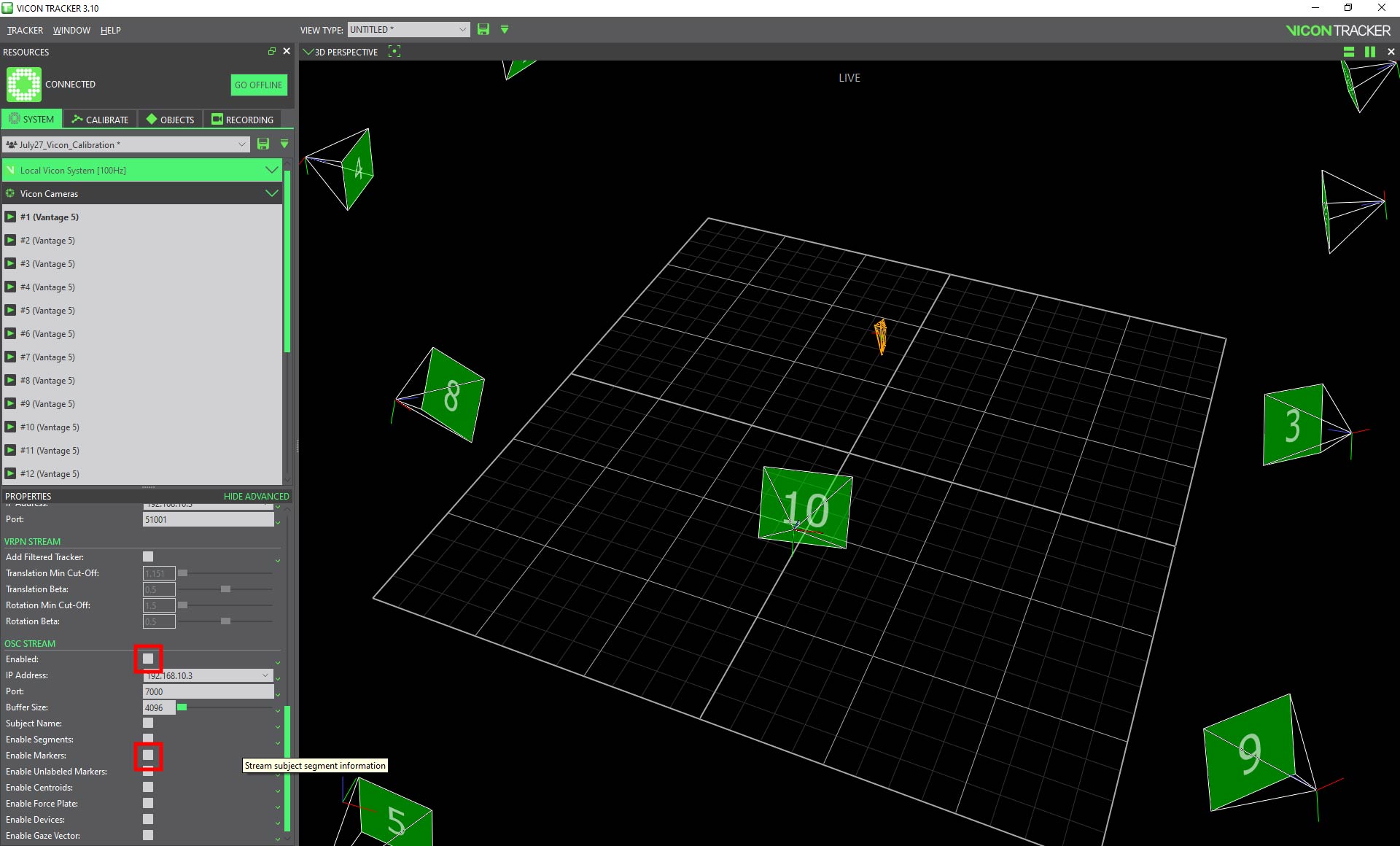
2. Scroll down to OSC STREAM and select Enabled and then select Enable Markers.
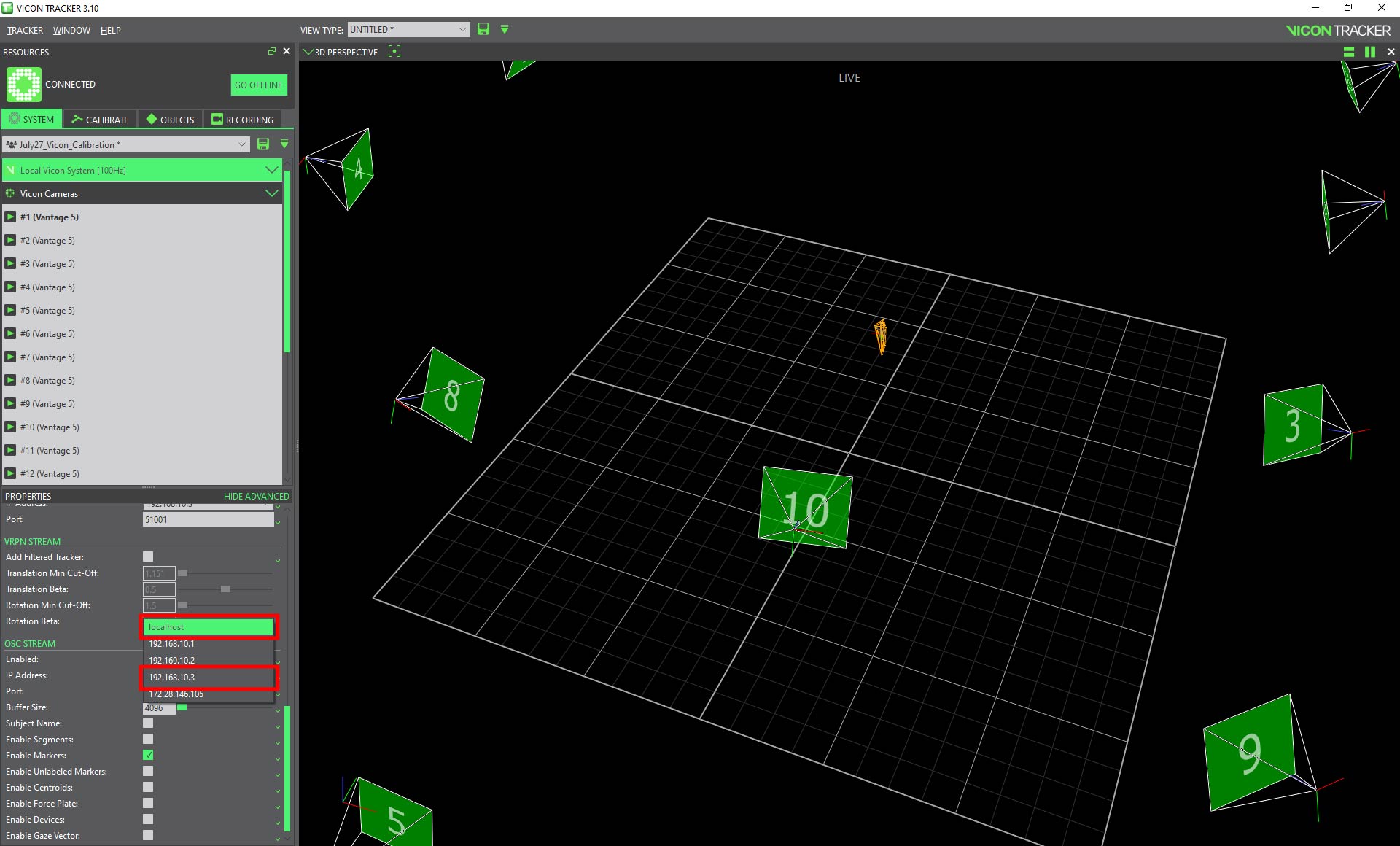
3. Select the IP Address to send the data from. This will either be localhost to use the Vicon computer or 192.168.10.3 to use the Vicon Computer and any computer connected to the LeedsLAN wifi network.
Below is an overview of the formatting of the OSC data stream:
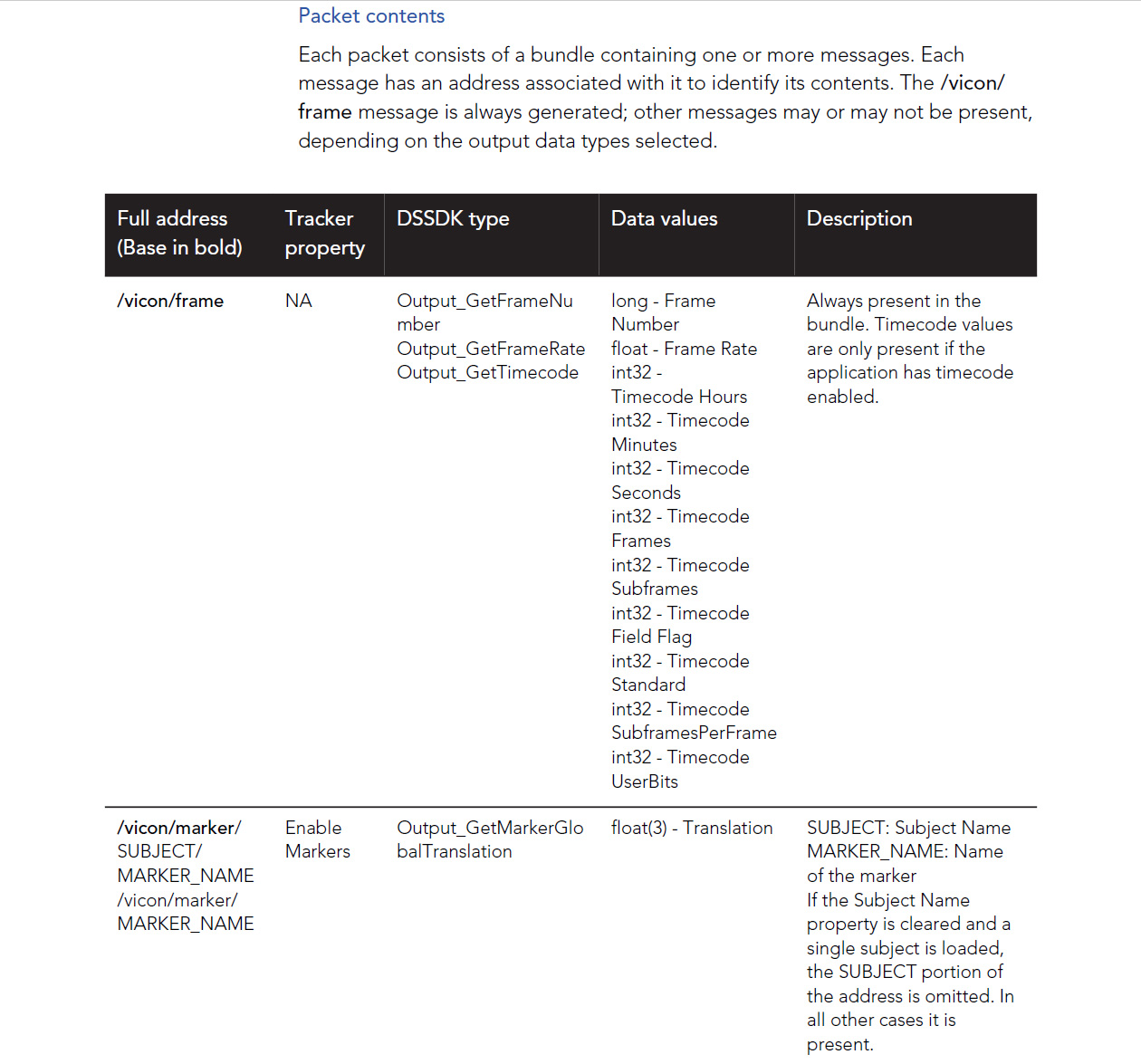
The above excerpt from the manual shows the types of data that will be sent when you have Enable Markers turned on. Below is an example of the data that will be sent for an “Object” with 3 markers each frame:
/vicon/frame
989
100
/vicon/marker/Object/Object1
100.878
300.474
150.892
/vicon/marker/Object/Object2
-200.726
600.567
200.387
/vicon/marker/Object/Object3
350.489
-400.575
-300.575